1.3 - Curated Intents
As users ask questions to NeuralSeek, their questions and the generated answers will appear in NeuralSeek's Curate section. Questions will be grouped into recommended intents, and it is important to note that a questions and answer pair may exist in multiple proposed intents of different specificity. It is up to you to choose which specificity level is best for your use case.
View chatbot preview questions in NeuralSeek
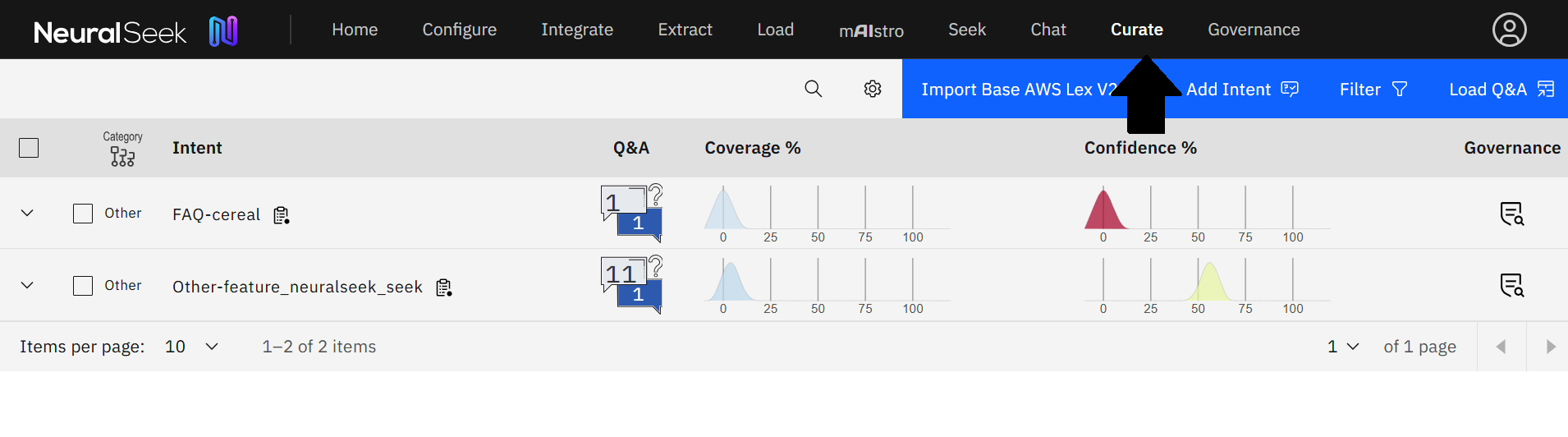
Login to the NeuralSeek User Interface.
- On the top menu, click the “Curate” tab.
Compare Coverage Score
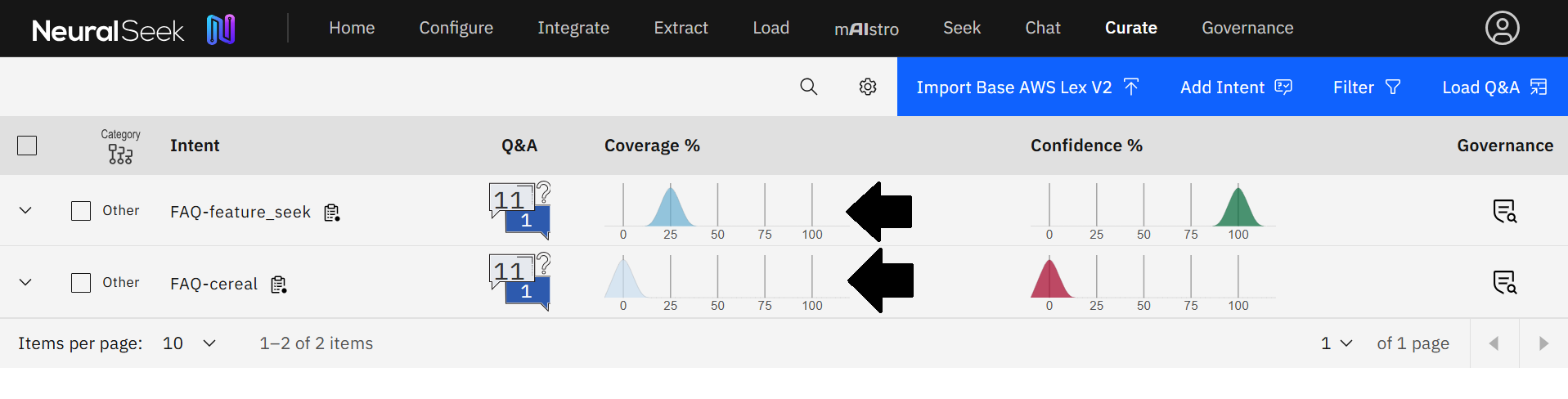
Users are able to compare coverage scores between intents.
- (a) Compare the high coverage score for the question, “What is NeuralSeek's Seek feature?”.
- (b) Compare the low coverage score for the question, “What is the best cereal?”.
There is no source information in the selected KnowledgeBase on why the sky is blue, but there is source information on NeuralSeek's features, which explains the difference in coverage scores.
Additional actions
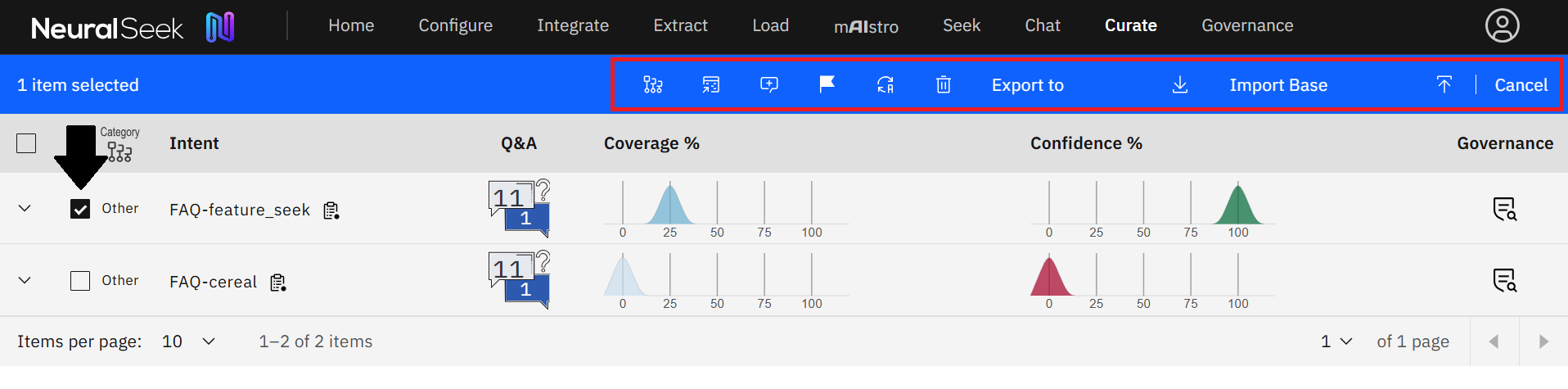
When you click one of the answers, the system automatically notifies you of actions you may perform on the row via the blue toolbar above.
- Click “Delete” to remove.
- Click “Merge” to merge with other checked seeks.
- Click “Flag” to return to later.
- Click “Download to CSV” to collaborate with subject-matter experts.
- Click “Edit Category” to place into a category.
- Click "Export" to download a basefile for uploading to your virtual assistant.
- Click "Import" to upload a basefile from your virtual assistant. NeuralSeek will merge exported content with this basefile.
Intent Categorization
Users are able to create categories using natural language descriptions to control how intents in user questions can be effectively handled with corresponding configurations.
Users may move intents into categories manually through the Curate tab or the CSV download/edit features. The edits made will be used to train the system for future categorization events.
Add Intent Categories
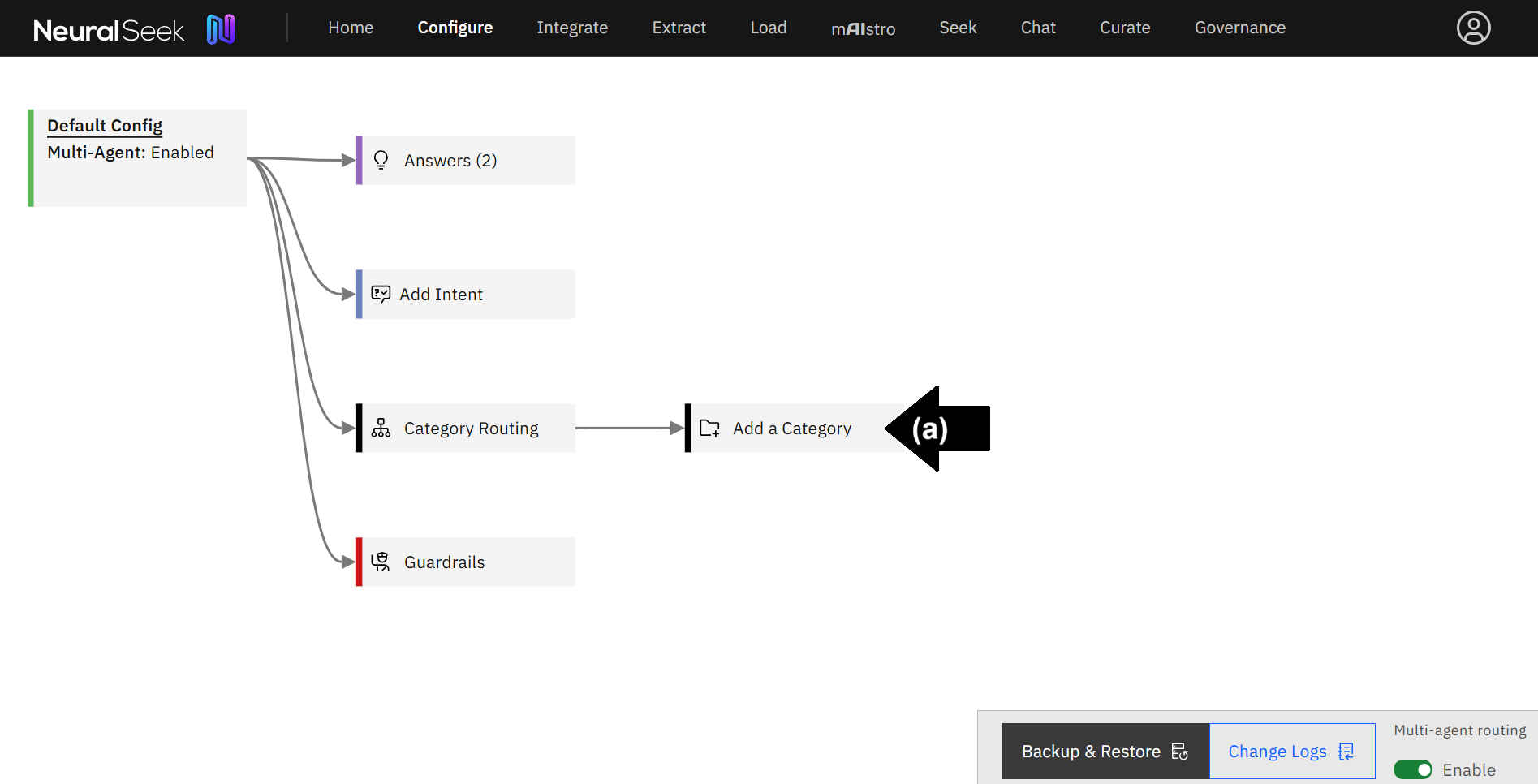
Navigate to the Configure tab. NeuralSeek’s default configuration is Multi-Agent Routing, and this has taken the categorization capabilities to a new level by allowing users to connect different configurations based on defined categories of user queries and handle the interactions dynamically and more effectively.
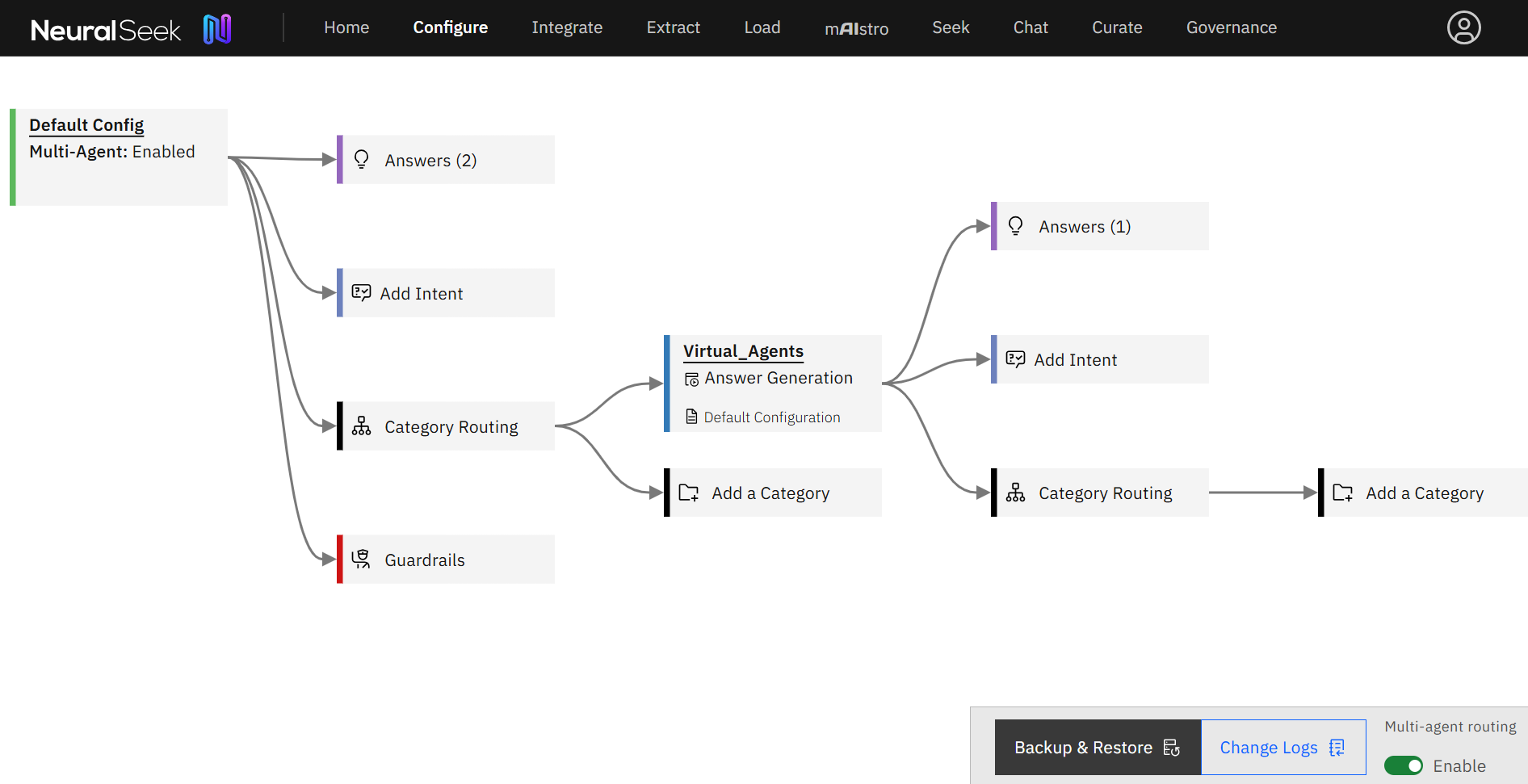
Categories are now used to drive the path of the multi-agent flow. At each category in the tree, you can specify a custom configuration that will be used for that category and the levels beneath it.
- (a) Click “Add a Category” next to Category Routing.
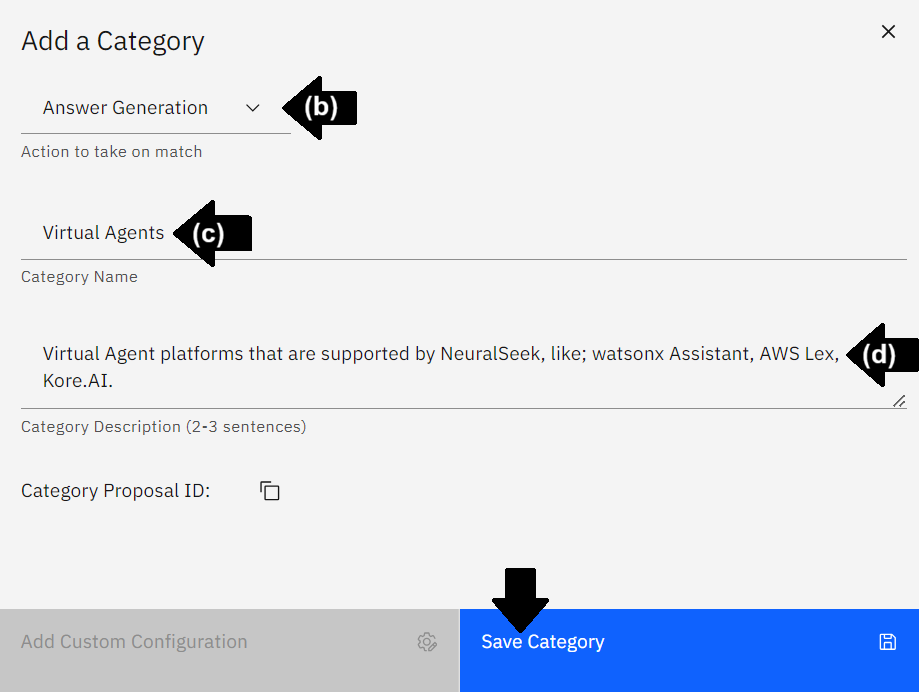
- (b) Select the action to take upon matching the category. In this example, select “Answer Generation”.
- (c) Add a category name. In this example, add “Virtual Agents”.
- (d) Add 2-3 sentences for a category description in natural language. In this example, “Virtual Agent platforms that are supported by NeuralSeek, like; watsonx Assistant, AWS Lex, Kore.AI.”.
- Click the Save Category button.
This newly created category will utilize the default configuration.
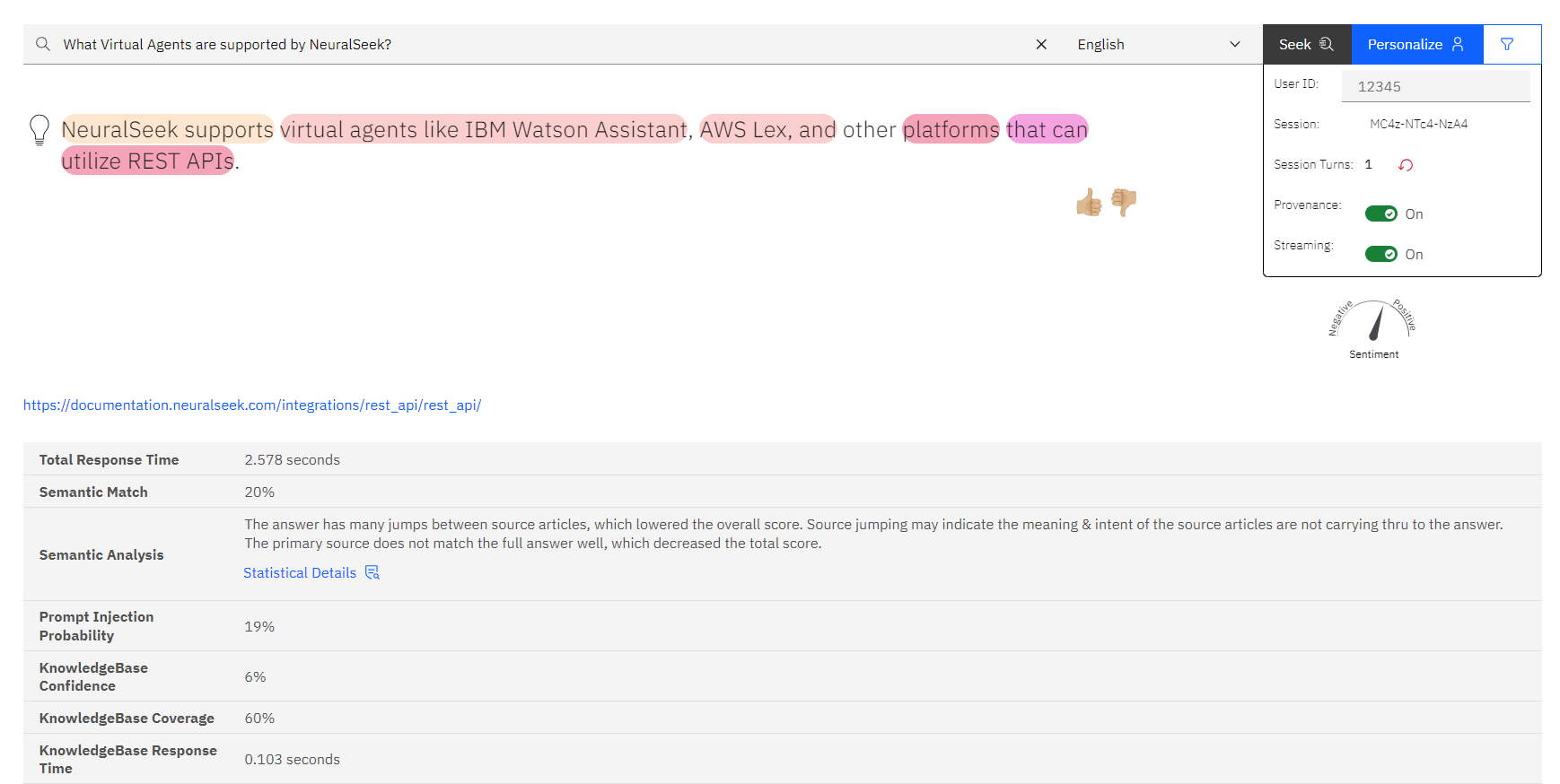
Seek Answers based on Intent Category
Navigate to the Seek tab within NeuralSeek.
- Ask a question involving the newly created Intent Category, so the Intent will appear in the Curate and Analytics screen as well.
- For example, seek:
What Virtual Agents are supported by NeuralSeek?, orDoes NeuralSeek support Virtual Agent integration?.
- For example, seek:
View Intent Categories
Navigate to the Curate tab within NeuralSeek.
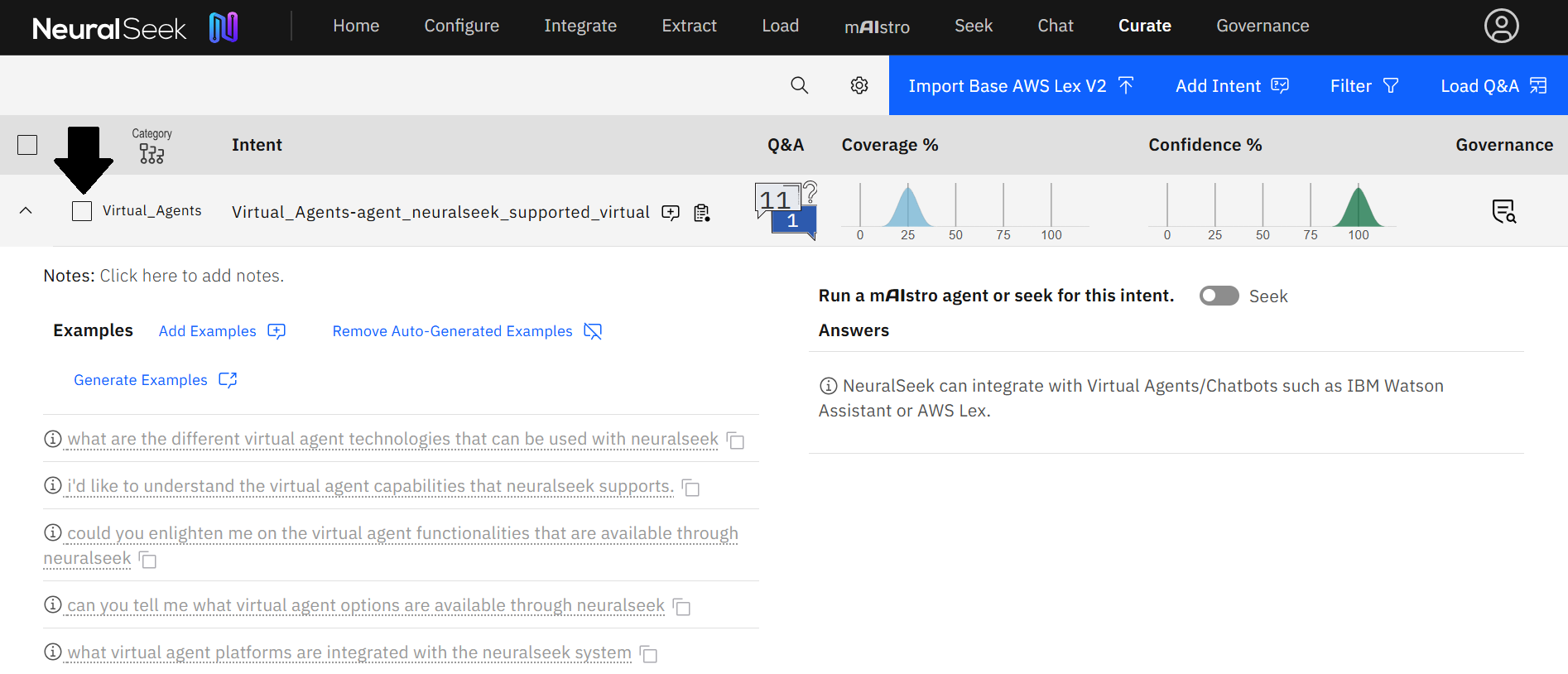
- Notice how the category name “Virtual Agents” is now next to the new intent underneath the Category label.
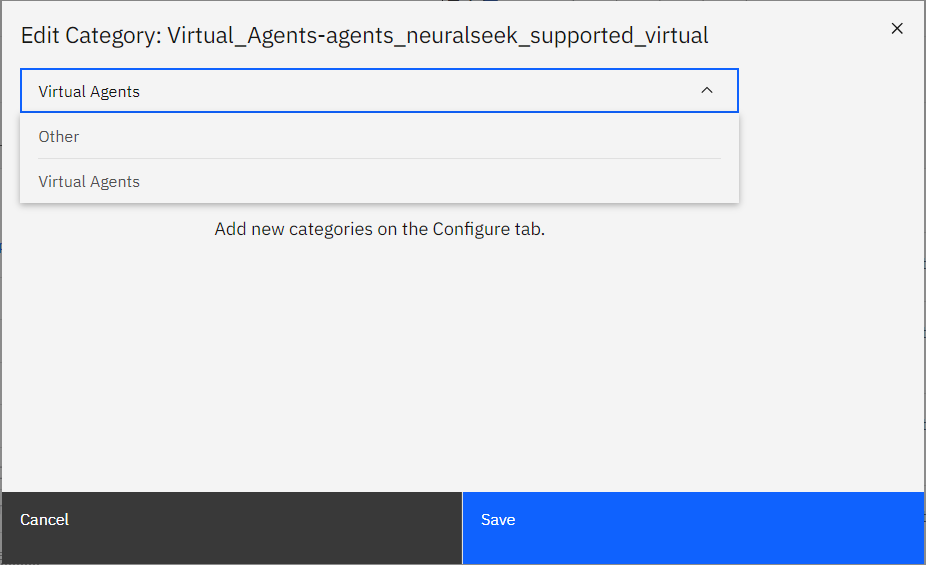
- Optionally, you can edit which category Intents fall into by selecting from the dropdown menu.